Short answer
How Mixamo animation works on an AI model
Adobe's web auto-rigger takes a still, unrigged humanoid mesh. You place markers on the wrists, elbows, knees and groin, it builds a skeleton in a few minutes, and you then apply clips from its library and download the result as FBX. It costs nothing with an Adobe ID, and the characters and clips are royalty free for personal, commercial and non-profit work.
So can you rig an AI model? Mixamo handles one well, but an AI-made character needs two things before Mixamo animation can start: a neutral pose and a file the uploader accepts. Most AI 3D tools hand you a GLB, which it does not take, so a conversion step usually sits in the middle. The rest of this guide covers that step, the settings, and what to do when the rig fails.
Contents10 sections
- Price with an Adobe ID; no Creative Cloud plan needed
- $0
- Upload formats accepted: FBX, OBJ and ZIP
- 3
- The only body type the auto-rigger and its clips support
- Bipeds
- How long the auto-rig usually takes once markers are set
- Minutes
Mixamo animation on an AI character, step by step
Five steps from a picture to a moving character. Plan on about half an hour the first time, most of it in the conversion and the clip picking.
Make the character in a neutral pose
Generate a front-facing humanoid standing in a T-pose or A-pose: arms clear of the body, legs slightly apart, nothing in its hands. Start from a photo in image to 3D or from a description in text to 3D. If your art is already posed, the AI pose changer page explains how to get a neutral version first.
Convert the GLB to FBX or a zipped OBJ
In Blender, use File > Import > glTF 2.0, then File > Export > FBX with Path Mode set to Copy and the embed textures toggle on. Or export OBJ and zip the .obj, .mtl and texture images together. The Blender import guide walks through the import side.
Upload and place the markers
Drop the file into the uploader. When the character appears, drag the markers onto the wrists, elbows, knees and groin as the on-screen guide shows, then confirm. The rig takes a few minutes.
Pick clips from the library
Open Find Animations and search for what you need: idle, walk, run, jump, wave. Sliders change speed and arm spacing. For walk and run cycles in a game, tick In Place so the engine, not the clip, moves the character.
Download for your engine
Choose FBX Binary, With Skin for the first clip, and Without Skin for every extra clip to keep files small. 30 frames per second suits most games. Check the result in the free FBX viewer before importing.
Which file to upload for Mixamo animation
The uploader lists three formats. Anything else, including the GLB most AI tools produce, has to be converted first.
| File | Accepted | Textures | Notes |
|---|---|---|---|
| FBX | Yes | Yes, with embed media on | The usual route; downloads come back as FBX too |
| ZIP of .obj + .mtl + images | Yes | Yes | Easiest if your tool already exports a zipped OBJ |
| OBJ on its own | Yes | No, it shows grey | Fine for a quick rig test |
| GLB or glTF | No | — | Convert in Blender: import glTF, export FBX |
| STL | No | — | A print file with no UVs; not a rigging source |
What a rig-ready AI 3D character looks like
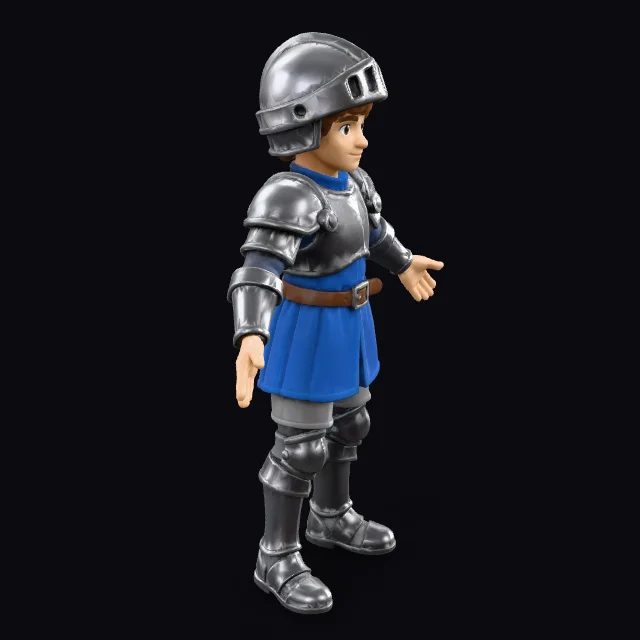
The auto-rigger guesses where joints go from the silhouette. It works best on a character whose head, body, arms and legs are clearly separate shapes, standing symmetrically and facing forward.
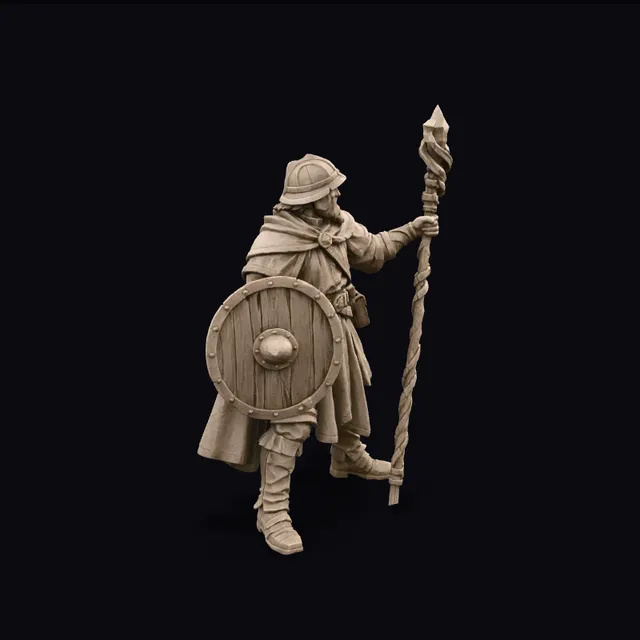
AI generators often get one of these wrong. Hands can fuse to the hips, a cape can join the legs into one block, and a big weapon reads as an extra limb. Fix that before upload, not after: generate again with "arms held out at 45 degrees, legs apart, empty hands" in the prompt, or ask for the character without the cape or sword.
A rig built on a clean, neutral pose bends at the elbows and knees. A rig built on a fused pose drags skin along with every step.
Tips for a clean Mixamo animation
Most failed or ugly rigs come from the file, not the clip. Clean it in Blender first.
When Mixamo animation fails on an AI character
Adobe's own list of requirements explains nearly every failure. The rig breaks or refuses when:
- the proportions are too deformed to read head, body, arms and legs
- there are large extras: wings, tails, extra limbs, very big hair or clothing
- the character is posed or strongly asymmetric before rigging
- the file holds other objects, such as helper objects or cameras
- parts float apart, like a head that does not touch the neck
- the character is far from the origin of the scene
For an AI model, the quick fixes are: regenerate in a cleaner pose, delete stray objects, join loose parts, and set the origin. If the mesh is very dense, a Decimate modifier in Blender brings it down before export and speeds up the upload.
Animate an AI 3D character without the FBX detour
If your target reads GLB, there is a shorter path. The Snapshapy agent rigs an upright, two-legged humanoid for 3 credits, right after it makes the model. You give the character's height in metres, the skeleton is built automatically, and no markers are needed. The rig card also lists an FBX of the rigged character, plus walking and running clips.
Animating is free: pick up to 10 clips per run from a library of 160, found by search (greeting, sword, backflip, walk). The result is one GLB with every clip named inside it, and GLB downloads are free on every plan.
If the model is not recognised as a humanoid, the rig stops and the 3 credits come back. A print mesh cannot be rigged either, because its textures are gone; rig the textured original.
Adobe's auto-rigger or the in-chat rig: which route fits
Both are honest options. The choice is mostly about which file your engine or app wants at the end.
| Step | Adobe auto-rigger | Snapshapy agent |
|---|---|---|
| Rig cost | Free with an Adobe ID | 3 credits |
| Clips | Its own large library, free | 160 clips, free |
| Input | FBX, OBJ or ZIP you upload | The model already in the chat |
| Joint placement | You place markers | Automatic |
| Download | FBX or Collada (DAE) | GLB with library clips; the rig card adds an FBX plus walk and run clips |
| Body types | Bipedal humanoids | Upright two-legged humanoids |
| Best when | Your pipeline is FBX: Unity, Unreal, Maya | Your target reads GLB: Godot, Blender, the web |
Poses that suit Mixamo animation, and one that doesn't
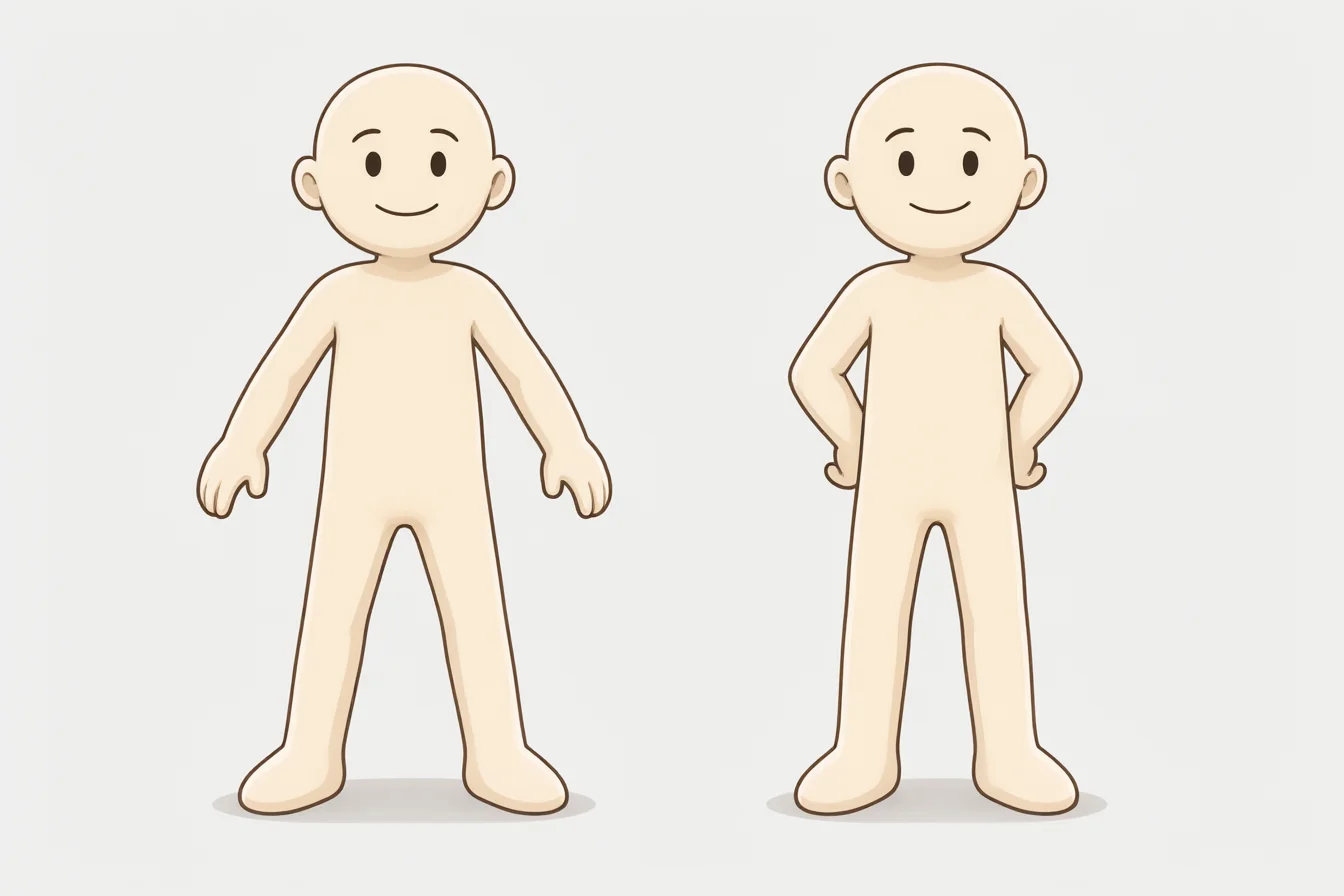
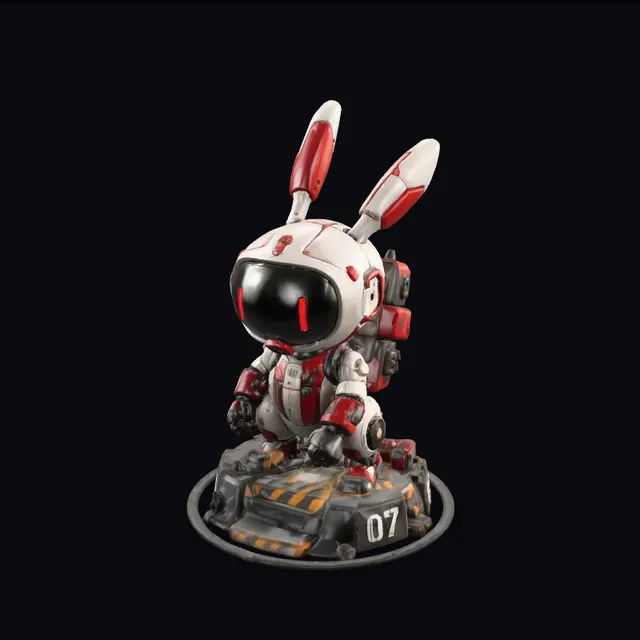
The pose decides whether the rig works. Compare a neutral stance with a figure built for a shelf.
Questions people ask
Is Mixamo animation free?
Yes. Adobe offers the auto-rigger and the animation library free to anyone with an Adobe ID, and you do not need a Creative Cloud subscription. Characters and clips are royalty free for personal, commercial and non-profit projects. The only costs in an AI workflow sit before the upload: making the model, and any paid export you need to get an FBX or a zipped OBJ out of your generator.
Can I upload a GLB file for Mixamo animation?
No. The uploader accepts FBX, OBJ and ZIP files only. Import the GLB into Blender with File > Import > glTF 2.0 and export FBX with Path Mode set to Copy and textures embedded. Alternatively export an OBJ and zip it with its .mtl and texture images, so the character keeps its colours after upload.
Does my AI character have to be in a T-pose?
It has to be in a default or neutral pose. A T-pose or an A-pose both work; what fails is an action pose, crossed arms, hands fused to the body or a strongly asymmetric stance. If your character was generated mid-stride or holding something, regenerate it standing straight with empty hands and arms held away from the body, then upload that version.
Can I animate animals, dragons or robots this way?
Not with Adobe's tool. Its auto-rigger and clip library are built for bipedal humanoids only, so four-legged animals, dragons with wings and tails, and vehicles are out. A robot works if it stands like a person with a clear head, arms and legs. Snapshapy's own rig has the same limit: upright, two-legged humanoids, with credits refunded if the model is not recognised.
Why are my character's textures missing after upload?
Either the FBX was exported without embedded media, or you uploaded a bare OBJ. An OBJ keeps its colours in a separate .mtl file and image files, so on its own it shows up grey. Re-export the FBX with textures embedded, or zip the .obj, .mtl and images together and upload the zip instead.
Can Snapshapy rig and animate a character itself?
Yes. After the agent makes a textured model, it can rig an upright two-legged humanoid for 3 credits and animate it for free with clips from a library of 160, up to 10 per run. You download one GLB with the clips inside, free on every plan; the rig card also offers an FBX of the rigged character. For a library of FBX clips, use Adobe's tool.
Which download settings work for a game engine?
FBX Binary is the safe default. Download the first clip With Skin, and every further clip Without Skin, so the mesh is stored only once. 30 frames per second suits most games. For walk and run cycles, tick In Place, so your character controller moves the character and the clip only animates the legs and arms.
How long does the whole workflow take?
Making the model takes 4–7 minutes for most characters in Snapshapy. Converting it in Blender takes a few minutes once you know the menus. Placing markers takes a minute, the auto-rig a few minutes more, and picking clips as long as you like. Budget half an hour for the first character and well under that for the next.
Need a character for Mixamo animation first?
Upload a photo or describe one, and the agent builds a textured humanoid in 4–7 minutes for 3 credits. New accounts get 3 free credits, no card needed.