Short answer
STL vs OBJ: the short answer
Use STL for a single-colour 3D print. It holds nothing but triangles, every slicer reads it, and there are no side files to lose. Use OBJ when the model must keep its look: OBJ stores texture coordinates (UVs), normals and a pointer to a material file, so Blender, game engines and viewers can paint it the way it was made.
So the STL vs OBJ choice comes down to one question: does anything besides the shape need to survive the export? If not, STL. If colour or textures matter, OBJ, or a single-file format such as GLB or 3MF.
Contents12 sections
- Year STL was created, for 3D Systems' first stereolithography printers
- 1987
- Size of one triangle in a binary STL file
- 50 bytes
- Unit fields in either format: no mm, no inches
- 0
- A textured OBJ in practice: .obj, .mtl and an image
- 3 files
STL vs OBJ side by side
What each format can hold, as defined by the formats themselves. A program may still ignore parts of a file it opens.
| Feature | STL | OBJ |
|---|---|---|
| Surface | Triangles only | Triangles, quads and larger polygons |
| Vertex sharing | None: each triangle writes its own 3 corners | Each vertex written once, faces point to it by index |
| Normals | One per triangle (facet normal) | Optional, per vertex (vn lines) |
| Texture coordinates (UVs) | Not supported | Supported (vt lines) |
| Colour and textures | Not in the standard | Through a separate .mtl file and image files |
| Units | None stored; slicers assume millimetres | None stored; the importing program decides |
| Encoding | Binary or ASCII text | Text only |
| Animation, bones | No | No |
| Typical home | Slicers, print services, model download sites | Blender, 3D apps, game engines, viewers |
What is inside an STL file and an OBJ file
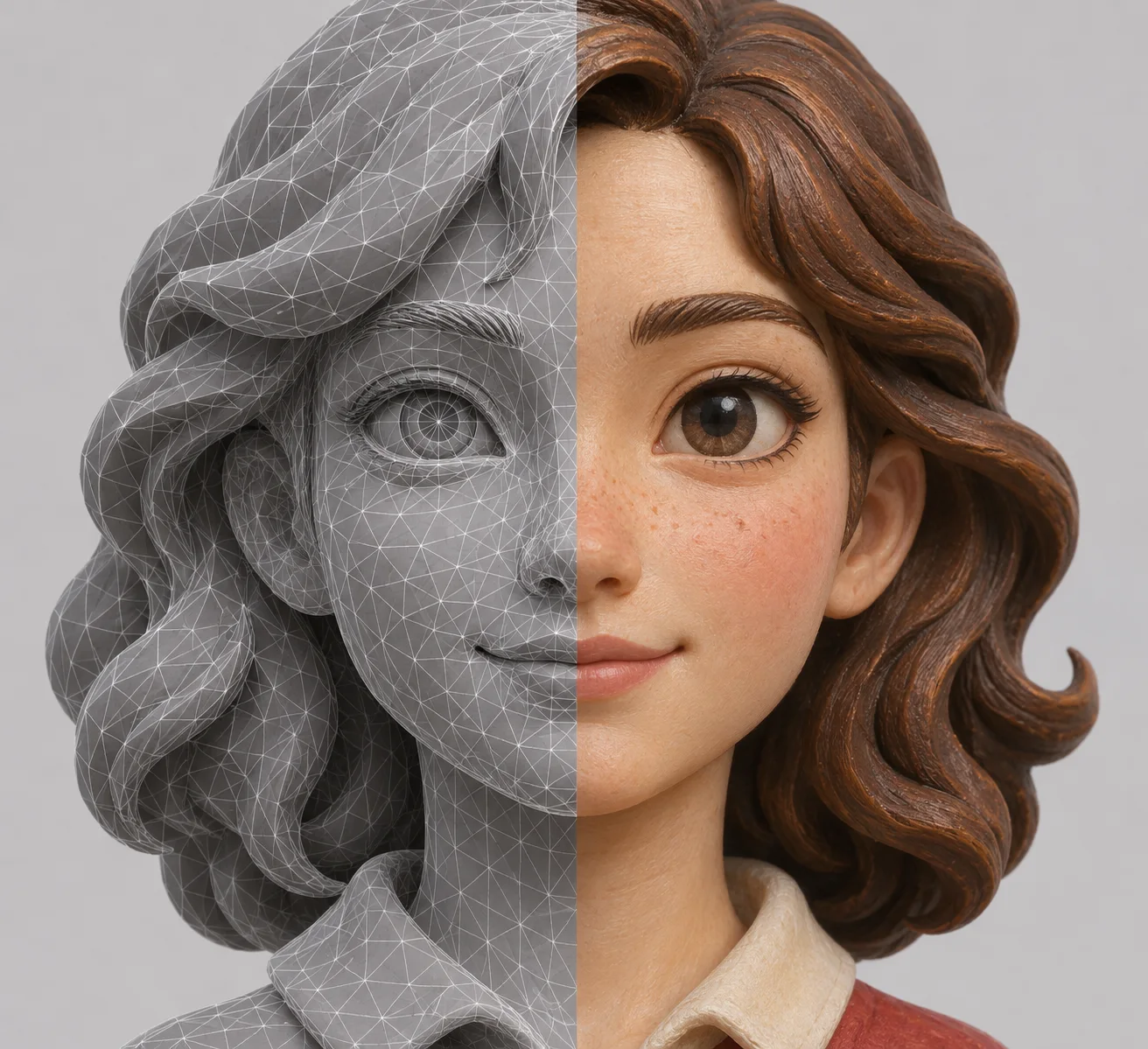
An STL file is a flat list of triangles. Each record holds a normal vector and three corner points, written out in full. Nothing links one triangle to its neighbour, so a corner shared by six triangles is stored six times. Software that wants to repair or simplify the mesh has to work out the connections again on import.
An OBJ file is a text file with separate lists. v lines hold vertex positions, vt lines texture coordinates, vn lines normals, and f lines build each face by pointing at those lists, counting from 1. A mtllib line names the .mtl file, and usemtl switches material for the faces that follow. The .mtl in turn names the image files, for example map_Kd for the base colour.
That indexed layout is the real STL vs OBJ difference. It is why OBJ keeps a mesh connected and why it has room for a UV layout. STL simply has nowhere to put one.
STL vs OBJ file size: the maths
Binary STL size is fixed by the triangle count, so you can work it out before you export. Here is the layout, byte by byte.
- Header
- 80 bytes of free text, ignored by most programs
- Triangle count
- 4 bytes, an unsigned 32-bit integer
- Each triangle
- 50 bytes: normal 12, three corners 36, spare field 2
- Number format
- 32-bit little-endian floats
- Total size
- 84 + 50 × triangles, in bytes
- 100,000 triangles
- 5,000,084 bytes, about 5 MB
- 1,000,000 triangles
- 50,000,084 bytes, about 50 MB
- ASCII STL
- Same triangles as text, several times larger
Why an OBJ can be smaller than an STL
A closed mesh has roughly half as many vertices as triangles. STL writes three corners per triangle, so on average every vertex appears about six times. OBJ writes each vertex once and then refers to it by number, which is why a geometry-only OBJ often comes out smaller than the binary STL of the same mesh, even though OBJ is text.
The gap closes once UVs and normals are added, because each of those is another list, and the face lines get longer. A textured OBJ also needs its .mtl and image files, so compare the whole folder, not the .obj alone.
To check what you actually have, open the file in the STL viewer or the OBJ viewer. Both show the triangle count and the bounding box before you commit to a slicer.
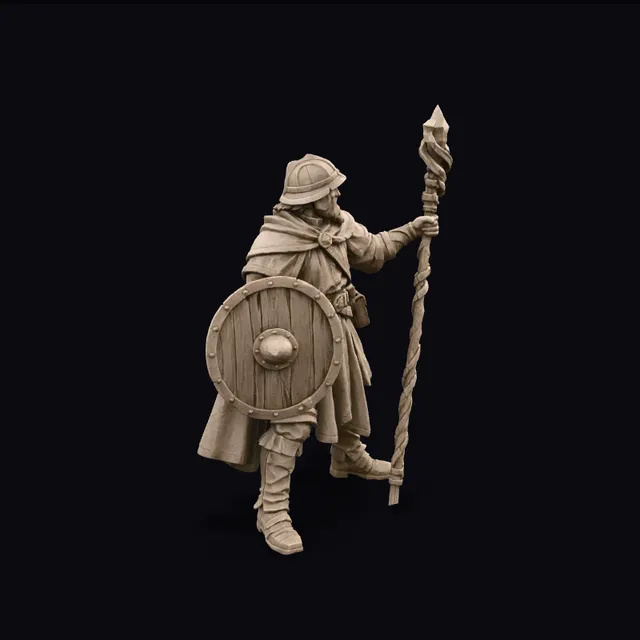
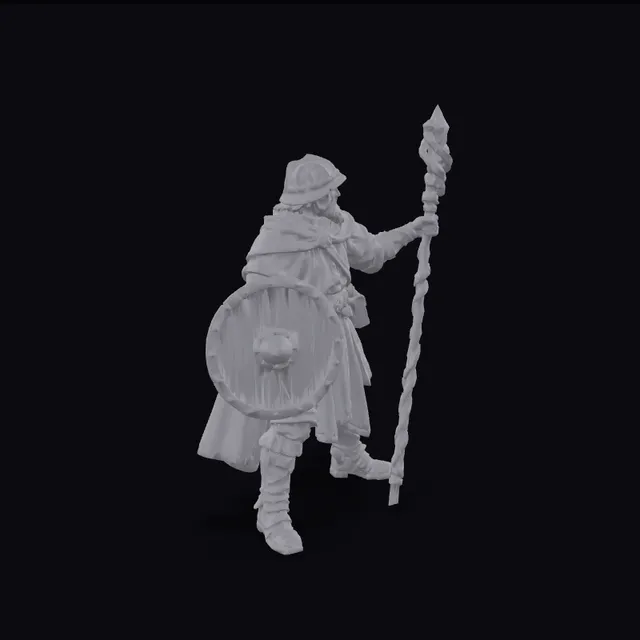
The same model with and without its texture
STL vs OBJ, made visible: one textured model from Snapshapy, shown twice. Drag either one to turn it.
OBJ vs STL for 3D printing
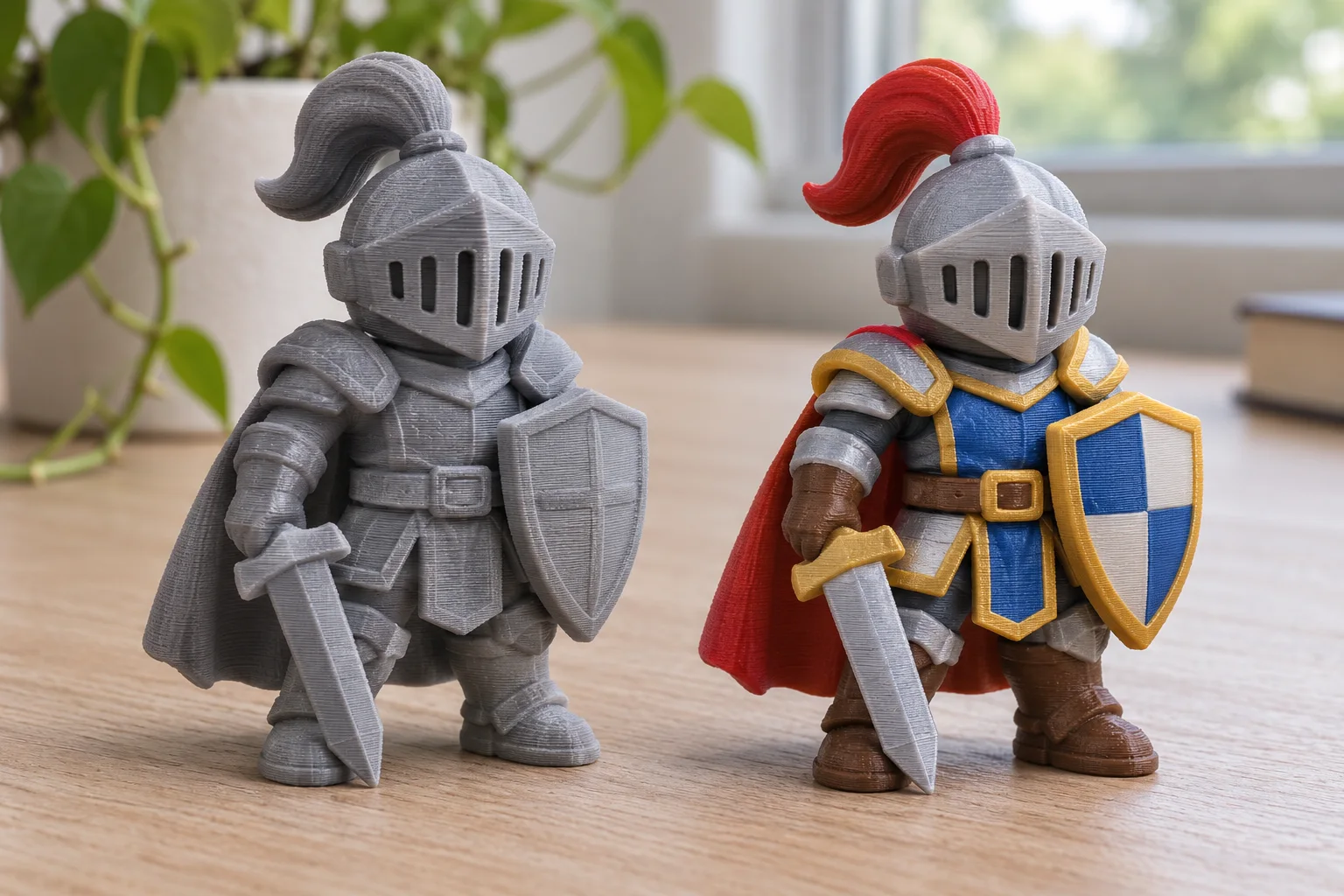
A slicer turns either format into the same toolpath. If the mesh is identical, the print is identical. What differs is what gets dropped on import. Bambu Studio, PrusaSlicer, OrcaSlicer and Cura all open both STL and OBJ, but for a single-colour print they only use the shape.
For OBJ vs STL for 3D printing, the deciding question is colour. Recent versions of Bambu Studio can read the colours in an OBJ and offer to map them onto filaments. For multi-colour work on any slicer, 3MF is the steadier choice: it stores units, several parts and colour per part in one zipped file. Check one in the 3MF viewer.
What really fails a print is the mesh, not the format: holes, flipped normals and parts that cross through each other. Those survive any conversion.
Which should you pick, STL or OBJ?
Decide by where the file goes next. Printers want shape; screens want shape plus surface.
Pick STL if…
- You are printing in one colour, FDM or resin
- You are uploading to a print service or a model site
- You want one file with nothing to forget
- The receiving tool is old or unknown
Pick OBJ if…
- The model has a texture or colours that must survive
- You are opening it in Blender or another 3D app to edit
- You need quads or a clean UV layout kept
- You need a format almost every 3D program can import
When neither STL nor OBJ is the right file
Both are plain meshes with no units. Two newer formats fix the gaps they leave.
| Format | Colour | Units | One file | Best for |
|---|---|---|---|---|
| STL | No | No | Yes | Single-colour prints |
| OBJ | Via .mtl and images | No | No | Editing, older 3D apps |
| 3MF | Yes, per part | Yes | Yes (zip) | Multi-colour prints, slicer projects |
| GLB | Yes, textures embedded | Yes (metres) | Yes | Web, AR, game engines |
Converting between STL and OBJ without surprises
In a conversion, the STL vs OBJ gap shows up at once. Shape converts cleanly both ways. Appearance only goes one way: you cannot get colour back out of an STL.
Getting an STL or OBJ from a photo
If you have a picture rather than a file, the Snapshapy agent builds the model first and exports the format you need.
Upload one photo
Drop a clear photo of one object on a plain background into image to STL or image to 3D. A textured model costs 3 credits, and most are ready in 4–7 minutes.
Keep it textured, or remesh it for print
Every model comes out textured, which is what an OBJ or GLB carries. For printing, ask the agent to remesh it: the textures come off and the triangle count drops to the number you set. Remeshing is free.
Export the format
GLB downloads are free on every plan. STL, OBJ, 3MF and USDZ come with a paid plan, from $19 a month on Starter. Failed jobs refund their credits.
Questions people ask
STL vs OBJ: which is better for 3D printing?
For a single-colour print they slice to the same toolpath, so STL is the simpler pick: every slicer and print service accepts it and there are no side files. OBJ only helps when colour matters, for example in Bambu Studio, which can map OBJ colours onto filaments. For multi-colour prints on any slicer, 3MF is the more dependable format.
Does an OBJ file keep colours and textures?
Yes, but not inside the .obj itself. The OBJ stores UV coordinates and names a .mtl material file, and the .mtl names the texture images. All of them must travel together. If you receive only the .obj, most programs open the model in plain grey. For one self-contained file with textures inside, use GLB instead.
Can an STL file have colour?
Not in the standard format. An STL stores triangles and a normal for each one, nothing else. A few programs hide a 15-bit colour in the two spare bytes of every binary triangle, but that is a vendor trick and most slicers ignore it. If you need colour on the print, export 3MF; if you need it on screen, use OBJ or GLB.
How big is an STL file?
A binary STL is exactly 84 bytes plus 50 bytes per triangle. A 100,000-triangle model is 5,000,084 bytes, about 5 MB, and a million triangles come to about 50 MB. ASCII STL stores the same numbers as text and is several times larger, so export binary unless a tool specifically asks for ASCII.
Can I convert OBJ to STL without losing quality?
Yes for the shape. Every triangle and position carries over exactly, and quads are split into triangles. What you lose is everything STL cannot hold: UVs, materials, textures and groups. Going the other way, STL to OBJ keeps the shape too, but it cannot bring back colour, because the STL never had any. Check the result in a viewer before printing.
Why is my model tiny or huge after import?
Neither STL nor OBJ stores units. Slicers assume an STL is in millimetres, so a model saved in inches arrives 25.4 times too small, and one saved in metres arrives 1,000 times too small. Scale it by that factor in the slicer. 3MF and GLB both record units, which is one reason to prefer them when you can.
Which format does Blender prefer, OBJ vs STL?
Blender imports both. For OBJ vs STL in Blender, OBJ is the better fit whenever the model has textures, because the UV layout and material slots come along. An STL arrives as one grey mesh with no UVs, which is fine for print preparation but not for texturing or rendering. For textured models, GLB is often easier still, since the images are packed inside.
Can Snapshapy export STL and OBJ?
Yes. Snapshapy turns a photo or a description into a textured 3D model for 3 credits, usually in 4–7 minutes. GLB downloads are free on every plan; STL, OBJ, 3MF and USDZ exports need a paid plan, from $19 a month. For printing, the agent can remesh the model first, which removes textures and sets the triangle count.
STL vs OBJ settled? Make either one from a photo
Upload one picture and the agent builds a textured model in 4–7 minutes for 3 credits. New accounts get 3 free credits, no card needed.
Already have a file? Open it in the STL Viewer, OBJ Viewer or 3MF Viewer.