Free browser tool
Free Online STL Viewer
Drop an .stl file to orbit it, zoom in, switch to wireframe and read its triangle count and dimensions. The file opens on your own device, never leaves your browser and costs nothing.
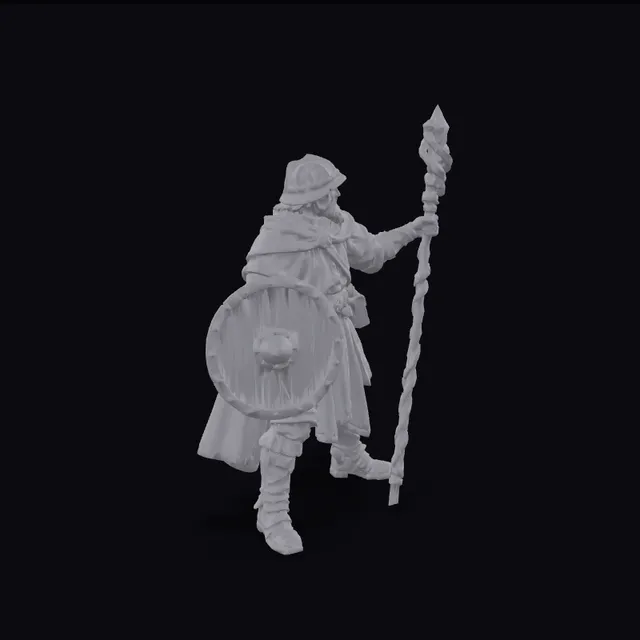
- No upload, no sign-up
- STL, OBJ, GLB, 3MF and more
- Works offline once loaded
How to open an STL file online
This STL file viewer needs no slicer, no CAD package and no account. A recent browser with WebGL is enough, on a desktop or a laptop.
- 01
Drop the file
Drag an .stl onto the viewer at the top of this page, or click to choose it from your disk. Binary and ASCII STL both open. The file is read by the page itself, so nothing is sent to a server.
- 02
Orbit, zoom and pan
Drag to turn the model, scroll to zoom and move the view to look under overhangs or inside a cavity. Switch to wireframe to see the triangles the surface is made of.
- 03
Read the numbers
Check the triangle count and the bounding box before you slice. If the size looks wrong, the units were probably mixed up on export, and you fix that in the slicer with one scale step.
What this STL viewer shows you
Four quick checks worth doing in a 3D STL viewer before you commit to a six-hour print.
The whole shape
Turn the model all the way round. Missing patches, stray floating pieces and spikes are easy to spot from angles a thumbnail never shows.
Wireframe
A dense, even mesh usually means a scan or an AI model; long thin slivers mean CAD export. Both print, but a mesh far denser than your nozzle can resolve only slows the slicer.
Triangle count
A binary STL stores about 50 bytes per triangle, so a 25 MB file is roughly 500,000 triangles. For a 10 cm figure, 100k to 200k is plenty.
Dimensions
Width, depth and height of the bounding box. Compare them with your print bed before you slice, not after the first layer goes down.
Files this online STL viewer opens
The page is built around STL, but the same viewer reads seven formats, so one bookmark covers most downloads.
| Format | What the file stores | Where you usually get it |
|---|---|---|
| STL | Triangles only, no colour, no units | Model sites, slicers, CAD exports |
| 3MF | Mesh plus units, colours and print settings | Bambu Studio, PrusaSlicer, OrcaSlicer |
| OBJ | Mesh, with materials in a side file | Blender, scanners, older tools |
| GLB / glTF | Mesh, materials and textures in one package | AI generators, web and game assets |
| PLY | Mesh or point cloud, often with vertex colours | 3D scanners and photogrammetry |
| FBX | Mesh, materials, and often rigs and animation | Game engines and animation tools |
Very heavy meshes with several million triangles can be slow on older laptops, because the whole model has to fit in the browser's memory.
Why an STL file looks tiny or huge
An STL stores bare numbers with no unit. Slicers read those numbers as millimetres, which is behind the most common surprise: a model that arrives 1,000 times too small, or 25.4 times off.
- If your figure reads 0.1 × 0.08 × 0.2, it was exported in metres. Scale it by 1,000.
- If a part you designed at 2 inches reads 2, the exporter wrote inches. Scale it by 25.4.
- If it reads 100 and you expected 100 mm, you are set.
Check the dimensions against your bed before slicing. A Bambu Lab A1 mini bed is 180 × 180 mm, so anything wider needs scaling down or cutting into parts. A 3MF avoids the whole problem, because it stores its units.
Tips before you open an STL file in your slicer
A minute here catches problems that otherwise show up as a failed print.
Do
- Toggle wireframe to find areas far denser than the rest, a sign of a messy scan
- Compare the height with your nozzle: detail under about 0.4 mm won't survive a 0.4 mm nozzle
- Look at the model from below to find the flat face it should sit on
- Let your slicer's repair run on import if it reports open edges
Avoid
- Treat a viewer as a slicer: it shows no supports, layers or print time
- Assume a model is watertight because it looks closed; a hole can be one triangle wide
- Expect colour from a plain STL; use 3MF or GLB when colour matters
- Email a huge STL when a screenshot of the view answers the question
No STL yet? Make one from a photo
If you came here because you want something to print rather than something to look at, start with a picture. On image to STL you upload one photo, the Snapshapy agent builds a textured 3D model in 4–7 minutes, then remeshes it into a lighter print version for free.
New accounts get 3 credits with no card, which is one model, downloadable as GLB. You can open that GLB right here in the viewer. STL, OBJ, 3MF and USDZ export come with a paid plan; see pricing. Or just open the agent at /app and describe what you want, or browse finished models on the Snapshapy home page.
- One photo in, textured model out
- Print version made for free
- First model free, no card
Frequently asked questions
Is this STL viewer free?
Yes. This free STL viewer has no sign-up, no watermark and no cap on how many files you open. It runs entirely in your browser, so there is no server cost to pass on to you. The only practical limit is your device's memory when a mesh has several million triangles.
Is my STL file uploaded anywhere?
No. The file is read by code inside this page and drawn by your own graphics card. Nothing is sent to a server, which is why it opens quickly and why it is safe for client work, unreleased products and models you bought under a personal licence. Once the page has loaded, it keeps working offline.
How do I view an STL file without installing software?
Open this page in Chrome, Edge, Firefox or Safari and drop the file onto the viewer. You can turn it, zoom, switch to wireframe and read its triangle count and size straight away. There is nothing to install, which helps on work laptops where you can't add apps.
Why does my STL look tiny or huge?
STL files carry no units, so slicers treat the numbers as millimetres. A model exported in metres looks 1,000 times too small, and one exported in inches looks 25.4 times too small. Check the dimensions in the viewer, then scale by the right factor in your slicer before you print.
Does the viewer tell me if my STL will print?
It shows you the shape, the wireframe, the triangle count and the size, which catches most obvious problems. It is not a slicer, so it won't plan supports or estimate print time. For holes and non-manifold edges, let your slicer's automatic repair check the file when you import it.
Can I see colours in an STL file?
Usually not. Standard STL stores triangles only, with no colour or texture. If colour matters, use 3MF, which stores colours per object and is what multi-colour slicer projects use, or GLB, which carries full textures. This viewer opens both, so you can compare the same model across formats.
What is the difference between an STL viewer and a slicer?
A viewer shows the model as it is: shape, size and mesh. A slicer such as Bambu Studio, PrusaSlicer or Cura turns it into printer instructions, adds supports and layers, and estimates time and filament. Use the viewer for a quick check and the slicer when you are ready to print.
Related tools
Open your STL file now
Drop it into the STL viewer at the top of the page. It opens in seconds and never leaves your computer.